Showing posts with label Smart Money Card. Show all posts

How To Verify Paypal Account Using Smartmoney Card

How To Verify Paypal Account Using Smartmoney Card
If you already have your Smartmoney card with you activated and loaded with atleast Php140, already linked to your Smart SIM or Smart account and your Smart Sim card is also loaded.

Why are your Smartmoney and Smart SIM have to be loaded? It is because upon verifying your Paypal account with Smartmoney, Paypal will charge your Smartmoney account to make sure that it is an active Smartmoney card which can be charged and can receive payments. Paypal will charge Php100 to your Smartmoney account.

Smartmoney card by default is locked from using for online transactions. To unlock it, you would need to go to the Smartmoney settings in your phone and there will be a Php2.50 charge to unlock it. That Php100 charge will be credited back to your Paypal account in a few days after the verification process is completed.

So here are the steps:

1. Log in you your Paypal account. Once you are logged in, your landing page is your account overview (see screenshot below). Click on "Get verified".
How To Verify Paypal Account Using Smartmoney Card
2. Apply the needed credit card (in this case Smartmoney) information. Provide all the Smartmoney card details such as your name and billing address (as it appears on your Smartmoney account), type of card (Mastercard) and the security code which is located on the back of the card. The security code is the last three digits you see there. For example if you see "6128 125", then the 125 is the code you need. Now before you click "continue", make sure that your Smartmoney account has been unlocked for online transactions which you will do on your phone. See step 3.
How To Verify Paypal Account Using Smartmoney Card
3. Unlock your Smartmoney account for online transactions. Again, you already have your Smartmoney card activated, loaded with funds and linked to your phone which is also loaded. Simply follow the menu below, take note that the arrangement of the menu may vary depending on the type of handset you have.

SIM menu >> Smartmoney >> Card management >> Transaction lock >> unlock >> Internet.

After you click on the "Internet" it will ask you the name of the card you want to make transaction. Simply select that card. Provide your PIN and wait for a text message confirmation that the Smartmoney card is ready for internet transactions. The last time I checked, this feature will only last for 10 minutes and after 10 minutes the Smartmoney will automatically be locked again from online usages. So see to it that you do it within that timeframe.

Now that you have received your confirmation message from Smart. You can now go ahead and click that "continue" button on Paypal. It will load and process the transaction, then a message will display, if it's successful you will know. You are not done yet.

4. Provide the four digit code from Smartmoney to your Paypal account. Remember I said that Paypal will charge your Smartmoney for Php100? You will also receive a text message confirmation from Smart about that transaction and that text message will contain the four digit code for that transaction. Get that 4-digit code because you will need to go back to your Paypal account and provide that code to complete the verification process. Paypal will say that the code may take up to several days to generate, that is for credit card accounts, I think. But for Smartmoney it is done the same day.

Once you provided it to your Paypal account, you're done.

If you have additional questions or suggestions, simply post it on the comments section below and we will talk about it. : )

You may also read my post about "How I Got My Smartmoney Card Right Away".

Linking Smart Money Card to Verify Paypal Account

Smart Money Master Card can be linked to Paypal. It can be used even if your Paypal balance is zero. Tested and works. Here’s how:


Apply for a Smart Money MasterCard. Go to nearest Smart Wireless Center its about 30 minutes you got your smart money card instantly.

Learn about the unlock features of Smart Money MasterCard for offline and online purchase. There are two types of unlock in Smart Money:

Unlock for Offline Purchase. Offline purchasing is unlocked by default. When your card is unlocked, you can use your Smart Money MasterCard for shopping at any store that accepts MasterCard. To check its status, go to Smart Money > Card Mgmt > Txn Lock > Check Status.

Unlock for Online Purchase. Online purchasing is locked by default. It needs to be unlocked before purchasing online. It automatically locks after 5 minutes.

Build some credit history by using your Smart Money MasterCard online and offline
Use your Smart Money offline. Use your card to buy in a grocery store. When your parents/friends go grocery shopping, offer to pay their bill using your Smart Money MasterCard and in return, let them pay you in cash.

Use your Smart Money online. Choose Pay by Credit Card. Dont forget to unlock it.

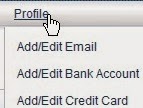
Login to Paypal and add your Smart Money MasterCard. Under Profile, choose Add/Edit Credit Card.

Make sure your Smart Money is unlocked for internet purchase before clicking Add Card. Paypal will charge $1 (non-refundable, converted to Peso) to your Smart Money MasterCard. Smart Money will send a text message:

Approval of Php 44.29 purchase at PAYPAL Merchant from card Card Name. Avail Bal: Php XXXX.00 Ref: 123456

Confirm your Smart Money MasterCard. Click Confirm My Card as shown below.

When you click Continue, Paypal will charge Php 100 to your Smart Money MasterCard to make sure its yours. Paypal send the unique 4 digit code that will show up on a text message that will be sent by Smart Money:

Approval of Php 100.00 purchase at PP*5465CODE Merchant from card Card Name. Avail Bal: Php XXXX.XX Ref: 123456

Enter the code. If successful, the Php 100 charge will be refunded back to your Paypal account in dollars.

Note: Unlock your Smart Money MasterCard first.


 How to Linking Smart Money Card to Verify Paypal Account
1. Get Smart SIM

If you have smart money, proceed to item #2, otherwise read on. You need to have a smart sim ( activate your smart money. You can either text MONEY to 343 or access it on your SIM menu, select Smart Money then activate account  Enter your desired PIN number or Go to nearest Smart Wireless Center you can get card instantly ). For details how, visit Smart Money page. You can also optionally apply for Smart Money card so you could use it to deposit funds from BDO, withdraw from ATM and use it for shopping.

2. Activate Smart Money

Linking Smart Money Card to Verify Paypal AccountOnce your Smart Money account is activated, unlock it now for online transaction. Again, access your SIM Smart Money menu from your cellphone. Select Smart Money, then Internet, choose Unlock (Some Smart Money users complaint they can't use it to link this account to PayPal, it's because they are not aware of that security feature from Smart which could be unlocked at will from your cellphone)

3. Add as Debit Card

Login to your PayPal and select Profile, then add/edit Credit Card. (see screen shot, forget the label used, technically credit and debit are both the same, except that debit is like a prepaid, while credit is like a postpaid). Take note though to have initial deposit of at least 200Php if you're going to have your PayPal account verified.